Intellectus allows users to import data from various types of saved files, including comma-separated (.CSV), Excel (.XLSX), SPSS (.SAV), Statistical Analysis Software (SAS), and Stata (.DTA).
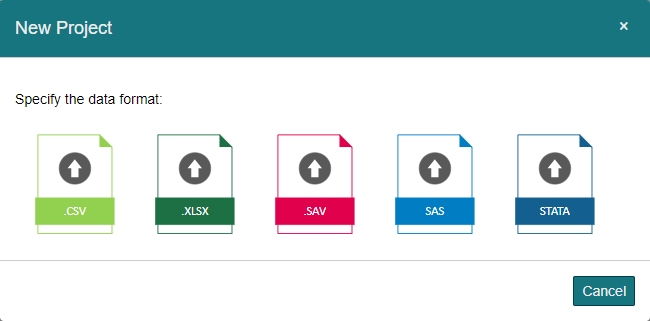
Qualtrics allows users to export data in a variety of formats. Although Intellectus Statistics accepts a few of these, we suggest downloading your data as either an Excel (XLSX) file or a Comma Separated Value (CSV) file. For simplicity, we will walk you through how to download, prep, and import your data using an Excel file.
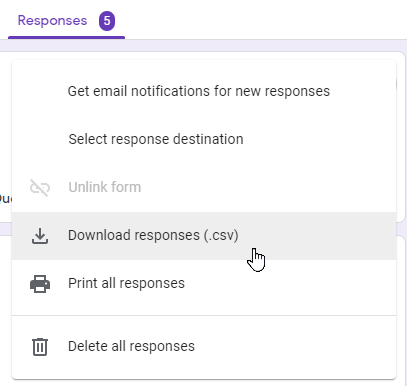
To download your data from Google Forms, follow the steps below:
Step 1: Navigate to the “Responses” tab.

Step 2: Click the more options button (three vertical dots) located to the right side of the number of responses. This will open a drop-down menu.

Step 3: Select “Download responses (.csv)” from the list.
To download your data from Google Sheets, follow the directions below:
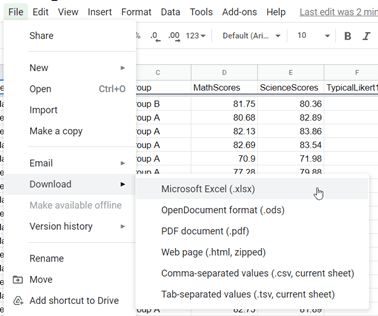
Google Sheets offers two different types of save files that are compatible with Intellectus Statistics: Microsoft Excel (.XLSX) and Comma-separated values (.CSV). We suggest using the .XLSX file as it typically retains the most functionality.
To download, click:“File” > “Download” > either “Microsoft Excel (.XLSX)” or a “Comma-separated values (.CSV)”.
Step 1: After downloading your file from Qualtrics, within your zip file you can open your saved data. If prompted, select “Enable Editing.”

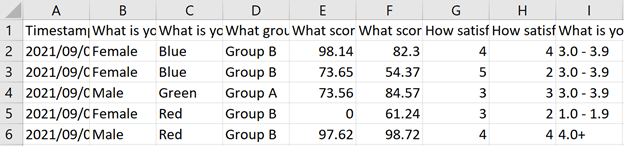
Step 2: To prepare your data for use in Intellectus Statistics, make sure your dataset is organized into columns with the variable names at the top and that all data pertaining to a single participant is entered into only their one corresponding row in the worksheet. You may notice that at the top of your Excel file there are a couple of extra rows above your data, one stating the question number and the other with the question itself. Delete these rows, and in their place add the variable names. Qualtrics also exports data with several extra columns. Only retain the columns that you wish to conduct analyses on and delete the rest.
Before:
After:
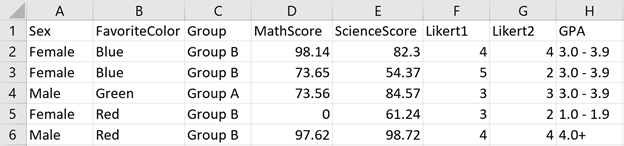
Once you have the Excel file prepped, you can sign in to Intellectus Statistics. After logging in, follow the steps below to upload data to Intellectus from Qualtrics:
Step 1: Navigate to the “Projects” tab.
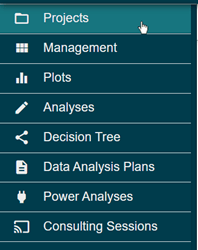
Step 2: Click the “Upload a Data File” button in the “Create a Project” panel.

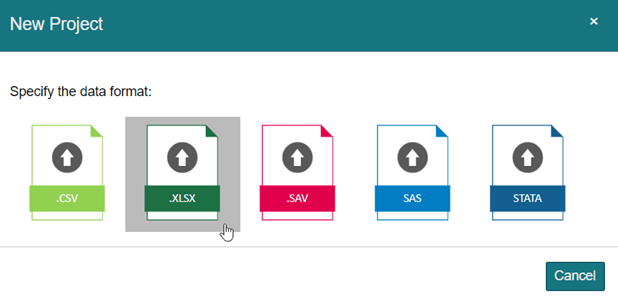
Step 3: Specify how you would like your file saved after downloading your data as Qualtrics supports multiple file types. Click the option that reflects your save file type.
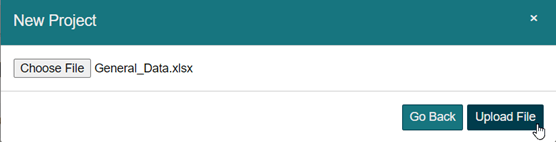
Step 4: Click “Choose File” and find the file you would like to upload. After selecting the data file, click “Upload File.”
If you are having trouble uploading your file into Intellectus Statistics, check to make sure your document is not in “Protected View.” If your document is, you can open your save file and “Enable Editing.”
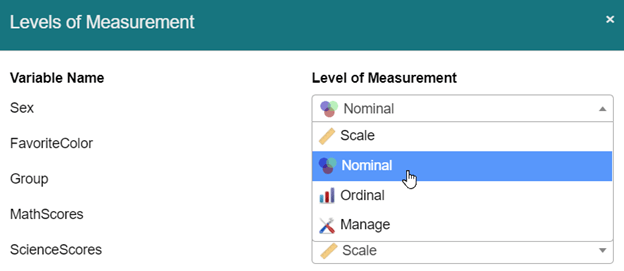
Step 5: Intellectus will autodetect which level of measurement you used. If this is done incorrectly, or if you would like to change the measurement type, select the correct one from the drop-down underneath the heading “Level of Measurement.” Within this drop-down, you also have the option of managing your data. Here you can add, merge, and delete the levels of your variables.
Step 6: Click “Continue,” and then you are ready to start analyzing your data!




